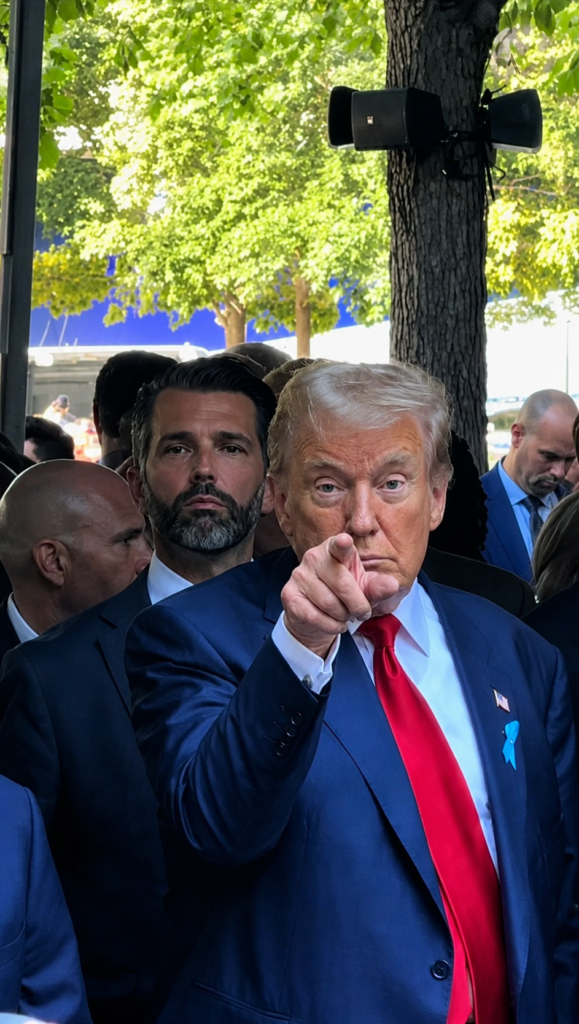
Ever tried using AI to “fix” an old or blurry photo, only to end up with a face that looks… almost right, but not quite you? Maybe the nose got a little narrower. Maybe the skin turned into smooth plastic. Maybe the eyes shifted just enough to feel wrong.
This happens because most people just type “enhance this photo” and let the AI guess what to do. The AI fills in the gaps with its own ideas — and that’s exactly when identities start to drift.
The fix isn’t a better AI tool. It’s a better set of instructions. Below is a detailed, ready-to-use prompt that tells the AI exactly what to fix (blur, noise, faded color) and exactly what to leave alone (your face, your features, your identity).
Why Most “Enhance My Photo” Prompts Fail
Think of an AI image editor like a contractor you’ve hired to renovate a house. If you just say “make it nicer,” the contractor might tear down a wall you actually liked. But if you hand them a detailed list — “repaint the walls, fix the cracked tile, but do NOT touch the original windows or the layout” — you get exactly what you wanted.
A vague prompt gives the AI creative freedom. A precise prompt gives the AI a checklist. This prompt is the checklist.
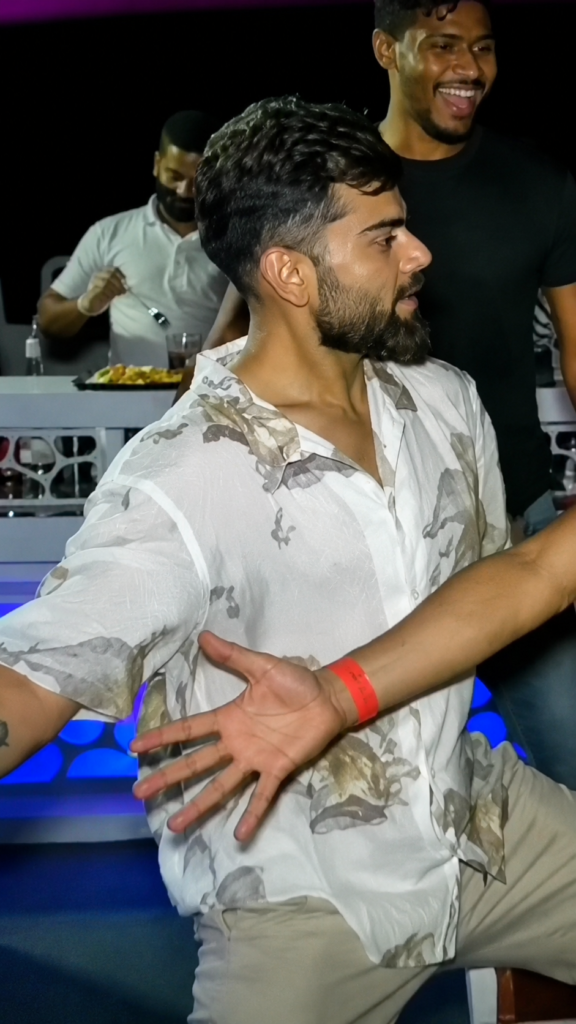
Result
What Each Part of This Prompt Actually Does
Breaking it down so you understand why it works, not just that it works:
“Remove blur, noise, grain, color fading, and compression artifacts” This is your cleanup list. It tells the AI which specific flaws to target — not a vague “make it better,” but the actual technical problems old or low-quality photos have.
“Preserving the subject’s exact identity, proportions, and natural appearance” This is the anchor of the whole prompt. It’s the line that stops the AI from “improving” your face into someone else’s.
“Restore sharp focus with refined micro-details in skin, hair strands, fabric texture” This pushes the AI toward real detail — individual hair strands, fabric weave, skin pores — instead of a flat, blurry smear that’s just been sharpened.
“Avoiding over-smoothing, artificial sharpening halos, or plastic effects” This is the line that fights the most common AI mistake: that waxy, airbrushed, “Instagram filter gone wrong” look where skin loses all its texture.
“Correct color balance… while preserving the original mood” This fixes washed-out or yellowed colors without turning a cozy evening photo into a flat, clinical daylight shot.
“Without altering the lighting direction” Small but important — this stops the AI from accidentally moving shadows or repositioning where the light source seems to be coming from.
“Retain the original framing, composition, camera angle, posture, facial expression…” This locks the photo’s story in place. Same moment, same pose, same expression — just clearer.
The “Hard rule” at the end This is deliberate repetition. AI models pay extra attention to instructions phrased as firm rules, especially near the end of a prompt. Repeating the identity-protection instruction in stronger language acts as a final safeguard.
How to Use This Prompt
- Pick a clear AI image-editing tool that lets you upload a photo and type instructions alongside it (most modern AI chat apps with image editing support this).
- Upload your photo.
- Paste the full prompt above exactly as written — don’t shorten it. Each sentence is doing a specific job.
- Generate the result and compare it side-by-side with the original. Check the eyes, nose, and mouth shape first — those are where identity drift shows up fastest.
- If something feels off, you can run it again, or add a short note like “previous attempt changed the nose slightly, please match the original nose shape exactly.”
Tips for Better Results
- Start with the best original you have. AI enhancement reveals detail that’s already faintly there — it can’t invent detail that’s completely lost. A slightly blurry photo gets dramatically better. A tiny, heavily pixelated thumbnail has less to work with.
- Good lighting in the original helps. Photos with visible facial detail (even if blurry) restore better than ones taken in near-darkness.
- Always compare before and after. Zoom into the face specifically — it’s the area most prone to small unwanted changes.
- Use it for old family photos, profile pictures, or printed photos you’ve scanned — anywhere you want clarity without losing what made the photo that photo.
Frequently Asked Questions
Will this change how I look in the photo? No — that’s the entire point of this prompt. It’s built specifically to block changes to facial structure, features, expression, body shape, and identity. It only sharpens and clarifies what’s already there.
Can I use this on old, scanned, or damaged photos? Yes. This works well on faded prints, grainy scans, and old digital photos that have lost sharpness over time.
Does it work on group photos? It can, though results are most reliable on photos where faces are reasonably visible and not too small in the frame.
Can I tweak the prompt for specific needs? Yes — you can add extra lines (for example, “do not change eye color”) for extra protection on details you’re especially particular about.
Got a photo you want to bring back to life? Save this prompt and try it the next time you’ve got a blurry, faded, or low-quality picture that deserves a second life — without becoming someone else’s face.
Gallery :